

In Compas, this feature can be found through: Admin | System | GDPR Rule.
The General Data Protection Regulation (EU) 2016/679 (GDPR) is a regulation in EU law on data protection and privacy in the European Union (EU) and the European Economic Area (EEA). It also addresses the transfer of personal data outside the EU and EEA areas. The GDPR aims primarily to give control to individuals over their personal data and to simplify the regulatory environment for international business by unifying the regulation within the EU.[1] Superseding the Data Protection Directive 95/46/EC, the regulation contains provisions and requirements related to the processing of personal data of individuals (formally called data subjects in the GDPR) who reside in the EEA, and applies to any enterprise—regardless of its location and the data subjects' citizenship or residence—that is processing the personal information of data subjects inside the EEA.
Controllers and processors of personal data must put in place appropriate technical and organisational measures to implement the data protection principles. Business processes that handle personal data must be designed and built with consideration of the principles and provide safeguards to protect data (for example, using pseudonymization or full anonymisation where appropriate). Data controllers must design information systems with privacy in mind, for instance use the highest-possible privacy settings by default, so that the datasets are not publicly available by default, and cannot be used to identify a subject. No personal data may be processed unless this processing is done under one of six lawful bases specified by the regulation (consent, contract, public task, vital interest, legitimate interest or legal requirement). When the processing is based on consent the data subject has the right to revoke it at any time.
Note: This feature is activated by Netvision only when requested by the client.
How GDPR is set in the System?
In Compas to set the GDPR, please check in the Admin Panel, under the System Section
Select if the setting is for Compas Office/On-board or Crew Application.
Step 1
Assign a Rule Name
Ensure you select the Compas application you want the rule to apply to (Compas or Crew Application)
Step 2
In the Step Configuration tab, click Add Step. By adding a step, you will be able to configuration the number of days and data elements should be deactivated after the crew has resigned/been dismissed. Example is shown below.
Unassigned list - are data elements that are not been assigned.
You may drag and drop the data elements by clicking the data elements and drop to a step.
This includes the list of personal data that has to be deleted after X days, X being the days after the crew has resigned / been dismissed, this is defined by the client. i.e. I want to delete all these items of personal data after 365 days. The period configured here should be in accordance to the company’s data retention policy, with regards to crew members personal & non-financial related data.
For the scanned copies of various items, they will be deleted along with the data record. No additional setup is required for this.
For the contract details (data record), it is linked to crew payroll, hence cannot be deleted.
Step 3
In the Last step tab, this step allows full deletion of the data elements left unchecked in the system under Step Configuration, after Y (greater than X) days since the seafarer has resigned / been dismissed (if the check box is checked). This period is generally governed by the local jurisdiction of the crew employer with regards to data retention for various auditing requirements. Here the client has the option to either Anonymise the crew name or leave the same as-is.
Compared with the previous GDPR tool, the new tool allows you to set applicability by Company, Owner Pool, Manning Office and Nationality, providing the flexibility required to apply different rules to different crew communities.
To determine the applicability, once the rule has been created, please click on the globe icon available besides the rule:
Select the applicability required based on company specifications:
Once all the settings and click Save.
The last step is to request activation to OTG of the schedule job to run the rules through the database. Note that the System Administrator can also decide when the rules applies or not clicking on the Enable/Disable functionality in the different rules:
User Permission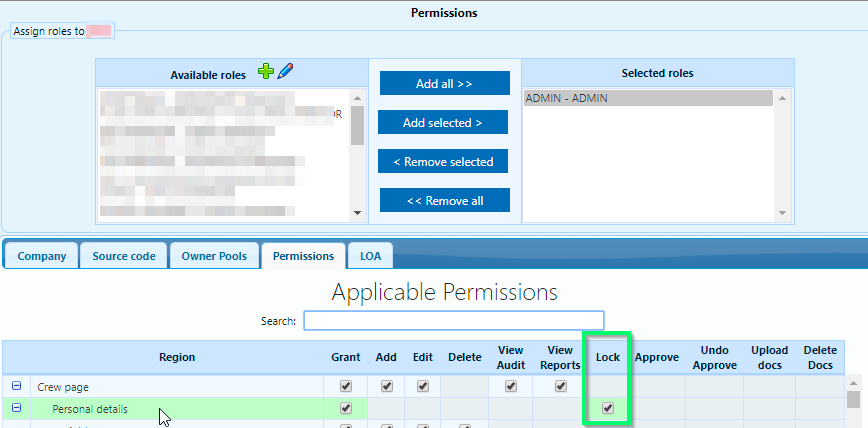
If for any crew member, we need to retain all data and this crew member should not be included in the GDPR process, for such crew member, on the crew profile, the users can exclude the crew member from GDPR process, by clicking on the Green Lock icon (Included in GDPR processing) and turning the icon to Red Lock (Excluded from GDPR Processing)
Silver Key icon is now for changing the password
The user is required to have the Crew page > Personal details - Lock permission on the permission tree.
Movement
External Sea – will delete All External Sea Service recorded on the Crew Profile.
Pre-employment Checks - will delete recorded Pre-employment Checks and uploaded documents.
Seniority starting point – will delete the Seniority balance starting point and all computed data.
Personal
Personal Details-will delete the information from crew profile - main page.
Address – will delete Address section under Personal tab, as per below:
Contact - will delete Contacts section under Personal tab:
Family - will delete Family members details under Personal tab.
Union – Data under the Union section is deleted when checked.
Additional Information- will delete Additional Information under Personal tab
Education - will delete Education records under Personal tab
Comments - will delete all the Comments recorded under Personal tab
Security questions - will delete Security questions.
Crew Chat - will delete Crew Chat under Personal tab.
Traveller Profile - will delete Traveller Profile under Personal tab.
Crew Sticky Notes - will delete the recorded Sticky notes.
Working gear – will delete records related to the Working gear issued to the crew.
Crew contract scanned documents – will remove the scanned contract attached under Service > Contracts. The contract data record will not be deleted as this is linked to closed payrolls.
Crew Photo – will remove crew’s photo from crew profile.
Bank Accounts & Payments - anonymize processed payment bank draft details, including Beneficiary details such as name and account number. These records cannot be deleted as they are linked to payments and closed payrolls.
Service
Assignments - will delete the recorded Assignments as per below:
Long service award - will delete Long service award records.
Nominations - will delete Nominations records
Programs – is deleting the Programs recorded under Service tab.
Readiness - will delete the readiness records.
Flights - will delete crew recorded Flights.
Documents
When checked will delete the following sections under Documents & Flag Docs. tabs:
Authentications / Certificates / Books / Licences / Passports / Visa / Vaccinations / Acknowledgment / Dispensations / Maritime Legislation Exams
Training
When checked will delete the following sections under Training tab:
Activities / Training Requests / Elearning history / Study grant / Drills / CBT Results Competency
Evaluation
E-Appraisals - will delete the recorded appraisals under Evaluation tab as per below
Medical
When checked will delete the following sections under Medical tab, as per below print screen:
Medical Examinations / Medical Events / Drug & alcohol tests / Health Insurance.
Comments
Article is closed for comments.